WhatsApp Interactive Messaging API Templates for Business
Deliver support at the speed of chat.
With over 130 billion messages sent daily and 2.2 billion of them exchanged between businesses and customers, WhatsApp has become the world’s most powerful customer engagement channel. It offers unmatched reach, responsiveness, and results in business communication.
If your business wants to provide instant replies and proactive communication on WhatsApp, interactive messaging is the tool you need. Using business message templates approved by Meta, you can engage customers with buttons and quick replies, send lists of options, and automate common requests through an easy-to-manage interface.
Whether you're confirming an order, solving a support issue, or triggering a personalized promotion, WhatsApp interactive messaging helps you improve response times, lower costs, and scale support.
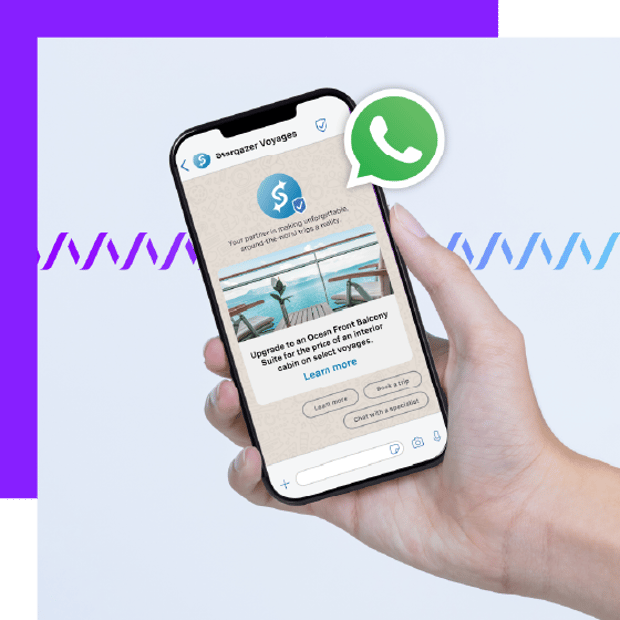
What WhatsApp interactive messaging enables businesses to do better
Here’s what leading companies in retail, SaaS, and support services are accomplishing with automated messaging and templates on WhatsApp:
Deliver faster support using buttons and quick replies
Personalize conversations with variables in business message templates
Launch customer support templates without dev teams or manual copy-pasting
Set up interactive lists for appointment scheduling, FAQs, or product menus
Power self-service with automated messaging workflows triggered by buttons
Provide 24/7 2-way messaging using bots and live agent escalation
Centralize WhatsApp inside the contact center messaging workflow
Reduce time to market using programmable messaging with Vonage
Keep messages secure using a compliant, secure messaging platform
Expand reach by integrating WhatsApp with your CRM via chat app integration
Use Vonage Messages API for messaging to send alerts, confirmations, and rich content
Test new campaigns in real time with in-platform sandboxing and message previews
Build scalable in-app messaging features that trigger WhatsApp updates
Add broadcast rich media messages like carousels and PDF downloads
What are WhatsApp interactive messaging templates?
WhatsApp interactive messaging templates are structured, pre-approved messages businesses can send to customers on WhatsApp. These templates allow companies to start a new conversation after the 24-hour service window, send proactive alerts, or automate repetitive interactions.
Unlike freeform messages, these templates include:
Text with personalization variables like {{1}}, {{2}}
Add custom details automatically, like a customer’s name, appointment time, or order number.
Example:
“Hi {{1}}, your appointment with {{2}} is confirmed for {{3}}.”
Buttons and quick replies to speed up response time
Let customers respond instantly by tapping instead of typing, which are ideal for simple answers or next steps.
Example:
“Would you like to reschedule?”
[Yes] [No] [Talk to Agent]
Interactive lists for structured multi-option menus
Provide up to 10 choices in a scrollable format, which are perfect for product categories, FAQs, or service options.
Example:
“Please select a topic:”
Account Help
Technical Support
Order Tracking
Billing Questions
Headers with media (image, video, or file)
Add rich content to grab attention or clarify details, which are great for product showcases, instructions, or receipts.
Example:
Header: Product Image
“Your item is ready for pickup at our downtown store.”
Footers with optional CTAs or instructions
Include short closing notes or links for easy action, like scheduling, feedback, or document downloads.
Example:
“Need more help? Visit our Help Center.”
... or ...
“Tap below to confirm delivery.” [Confirm Delivery]
Each template must go through a template approval process by Meta to ensure compliance with WhatsApp’s policies.
Why businesses use WhatsApp interactive templates
Over 45% of users engage with WhatsApp more than once an hour, and the average user opens the app 25 times a day, which makes it the perfect channel for high-frequency support and automated reminders.
1. Faster support at scale
Customers tap instead of type. Buttons and quick replies help users respond instantly to common questions like:
“Do you want to reschedule?”
“Are you still interested in this offer?”
“Need to speak with an agent?”
This structure reduces response delays and makes customer interaction easier to automate.
2. Streamlined business communication
When messages follow a predictable format, your support and sales teams can process more requests without errors. This enables streamlined business communication across departments.
3. Pre-approved messaging reduces risk
Templates approved through the template approval process keep your account in good standing, especially when using customer support templates or marketing messages after the 24-hour window.
4. Personalization at scale
Use dynamic fields like {{1}} to add names, appointment times, or order details in bulk. Customers feel like they’re talking to a real person, not a bot — without increasing workload.
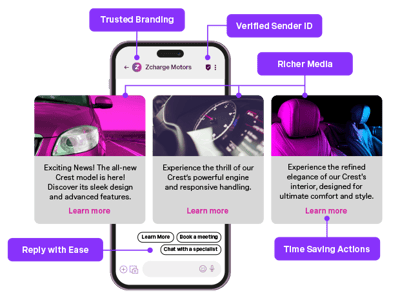 Customer Engagement
Examples of WhatsApp interactive messaging templates for better business communication
Below are common business message templates and how they’re used across industries:
Appointment reminder
Hi {{1}}, your appointment with {{2}} is confirmed for {{3}}.
[Reschedule] [Cancel]
Delivery notification
Your order #{{1}} has shipped and is expected on {{2}}.
[Track Order] [Contact Support]
Feedback request
Thanks for your recent purchase. How would you rate your experience?
[👍 Good] [👎 Needs Improvement]
Product selection (using interactive lists)
Please choose a product category:
Shoes
Jackets
Accessories
[View More]
Support menu
How can we help today?
Account Help
Technical Issue
Return or Refund
Using interactive lists, customers tap their issue type instead of typing it manually, improving the accuracy and speed of customer interaction.
Using quick replies and buttons in WhatsApp business communications
Quick reply buttons are ideal for predictable responses like "Yes," "No," or "Talk to agent."
Call-to-action (CTA) buttons allow users to:
Open a website
Call a business
View a document
Schedule a service
Together, buttons and quick replies help reduce cognitive load, boost engagement, and trigger automated flows in your contact center messaging system or in-app messaging platform.
The different template types you can use with Vonage and WhatsApp interactive messaging
Vonage Messages API allows you to build and manage various template formats:
Text-only templates: Use text templates with variables to send reminders, alerts, and confirmations.
Media templates: Include image, video, or PDF headers with your message. Ideal for receipts, instructions, or personalized onboarding.
Quick reply templates: Allow users to respond with a tap — no typing required.
Call-to-action templates: Offer buttons that open links, start calls, or trigger actions.
List templates: Present up to 10 options in a scrollable format using interactive lists.
Carousel templates: Build rotating cards with media, buttons, and custom messages. Excellent for showcasing products, categories, or events.
Approval process for WhatsApp interactive message templates
Before you can send any proactive message, it must pass the approval process for WhatsApp interactive message templates. This ensures compliance with WhatsApp’s business messaging policies.
Steps in the template approval process
Create the template in your Meta WhatsApp manager interface or through Messages API for messaging
Define your variables like {{1}} for dynamic personalization
Select the template category: utility, authentication, or marketing
Add media, buttons, or lists if required
Submit to Meta for review
Monitor the status in your dashboard (Pending, Approved, Rejected)
Common reasons for rejection
Template is too vague or misleading
Uses promotional language in a utility category
Variables are used incorrectly
Language or format does not meet guidelines
Once approved, the template is ready to use through Vonage programmable messaging API. If rejected, clone the template, correct the issue, and resubmit.
Configuring lists and buttons in WhatsApp messages
Creating high-converting WhatsApp messages means using the right interactive lists and buttons and quick replies.
Lists
Use lists to present a set of structured choices. You can display up to 10 options, such as:
Available appointment slots
Product categories
Support request types
This helps reduce human error and improves the user experience for two-way messaging.
Buttons
You can include:
Quick replies: Up to three per message
Call-to-action buttons: Up to two, including links or phone calls
Together, these tools create smoother workflows, increase speed, and make WhatsApp a powerful part of your chat app integration strategy.
Sending WhatsApp templates through messaging APIs
Vonage Messaging API gives you the power to manage WhatsApp templates programmatically — from creation to delivery and tracking.
See our guide on how to work with WhatsApp interactive messages.
You can dynamically personalize messages, trigger them via your CRM, or use them as part of a broader messaging automation strategy.
Formatting messages for better engagement
To make your WhatsApp messages more readable, use these formatting tools:
Style | Symbol | Example |
Bold | * | Your total is $10.50 |
Italic | _ | Welcome to WhatsApp |
Strikethrough | ~ | This is ~old~ new |
Inline code | `` | print("hello") |
Line break | \n | Hello\nWorld |
These formatting options can be used across customer support templates, notifications, and onboarding flows.
Receiving inbound messages and media
WhatsApp allows full two-way messaging, meaning customers can initiate or respond with:
Text
Emojis
Voice messages
Images
Video (inbound only)
Location data
Files (PDFs, etc.)
When integrated into your contact center messaging platform or CRM, inbound data can route to the right agent, bot, or workflow — improving customer interaction without increasing load on your team.
How to use messaging automation in WhatsApp
Once you combine business message templates with Vonage’s messaging automation capabilities, you can:
Automatically trigger messages based on events (e.g., cart abandonment, delivery)
Route support requests by button response
Escalate chats based on sentiment or inactivity
Offer dynamic menu trees via interactive lists
The result is scalable, consistent service across millions of conversations, backed by a secure messaging platform that complies with WhatsApp’s strict requirements.
WhatsApp use cases across industries
Here are real examples of how businesses use WhatsApp interactive messaging templates for business to improve results:
Retail
Back-in-stock alerts via automated messaging
Post-purchase feedback via buttons and quick replies
Sales promotions using broadcast rich media
SaaS
Feature updates delivered through programmable messaging
Onboarding tips and support menu using interactive lists
Customer service
Appointment confirmations using customer support templates
Troubleshooting flows through chat app integration
Secure identity checks via authentication templates
Logistics
Live tracking links with call-to-action buttons
Notifications powered by the API for messaging
Unlock easy to scale customer support with WhatsApp interactive messaging
If your business is aiming to boost response times, automate repetitive communication, and improve customer experience, WhatsApp interactive messaging templates are essential.
With Vonage programmable messaging API, you can:
Send pre-approved WhatsApp templates at scale
Automate support flows using interactive lists and quick replies
Add media-rich content like PDFs, images, and carousels
Trigger campaigns through CRM, chatbots, or in-app logic
Stay fully compliant with Meta’s business messaging policies
Ready to modernize your customer messaging? Get started with Vonage Messages API for WhatsApp.
Sign up now
Was this helpful? Let's continue your API journey
Don't miss our quarterly newsletter to see how Vonage Communications APIs can help you deliver exceptional customer engagement and experiences on their favorite channels.

Thanks for signing up!
Be on the lookout for our next quarterly newsletter, chock full of information that can help you transform your business.
Frequently asked questions about WhatsApp interactive messaging templates
A WhatsApp interactive message template is a pre-approved message format that allows businesses to send structured, automated messages to customers using buttons, lists, personalization fields, and media. These templates are required to re-initiate conversations outside the standard 24-hour reply window.
Meta (WhatsApp’s parent company) requires templates to go through an approval process to ensure they follow WhatsApp’s Business Policy. This helps prevent spam, protect user experience, and ensure businesses only send relevant and compliant messages.
Freeform messages can only be used in an open session — meaning within 24 hours after a customer has messaged your business. Template messages can be used proactively, even after 24 hours, and must follow approved formatting.
You can include:
Quick reply buttons (e.g., “Yes,” “No,” “Talk to agent”)
Call-to-action buttons (e.g., open a link, call a number)
Interactive lists with up to 10 options
Media headers (image, video, document)
Personalization fields like {{1}}, {{2}} for names or appointment times
Approval typically takes a few minutes to a few hours. If the content violates WhatsApp’s policies (e.g., contains vague language or promotional words in utility templates), it may be rejected and require revision.
Yes. With Vonage’s messaging API, you can send media-rich templates that include images, PDFs, videos, and carousels — as long as they are part of an approved message format.
Yes. You can use dynamic variables (e.g., {{1}}, {{2}}) to automatically insert personalized content like customer names, order numbers, appointment times, or service options.
You’ll receive a rejection reason in your dashboard. Common issues include vague content, incorrect formatting, or using promotional language in the wrong category. You can clone, correct, and resubmit the template for approval.
Yes. Vonage’s API supports messaging automation by allowing you to trigger messages based on CRM events, chatbot logic, or user actions. You can build flows with templates, buttons, and escalation rules.
Yes. All messages are end-to-end encrypted, and Vonage offers additional security features like JWT-based authentication, compliance with Meta’s guidelines, and secure API integrations.
Some of the most effective uses include:
Appointment confirmations and reminders
Shipping and delivery notifications
Product or service feedback
Support menu navigation
Secure login or two-factor authentication (2FA)
Promotions and re-engagement messages